Why does my phone see the bracelet but the app cannot connect?
Most touch bracelet pairing problems should be investigated inside the official app before removing old device entries or resetting the wearable.
Identify the point at which pairing fails
Bluetooth pairing can fail before the application sees the bracelet, after the device appears but cannot be confirmed, or after a previously successful association stops working. A connection error at one stage does not necessarily have the same cause as an error at another. Record the actual screen or indication rather than simply reporting that Bluetooth does not work.
Our connection troubleshooting guide distinguishes the local wearable connection from internet delivery between users. Here the focus is the local link. Start with a charged bracelet, a supported phone and the official app. Check that Bluetooth is enabled and that the application is permitted to use it. Keep the wearable near the phone, using the exact model's activation instructions. If the module does not respond locally, investigate its power before repeatedly searching for it. A device without sufficient power may not be discoverable.
Use the appropriate app-first setup
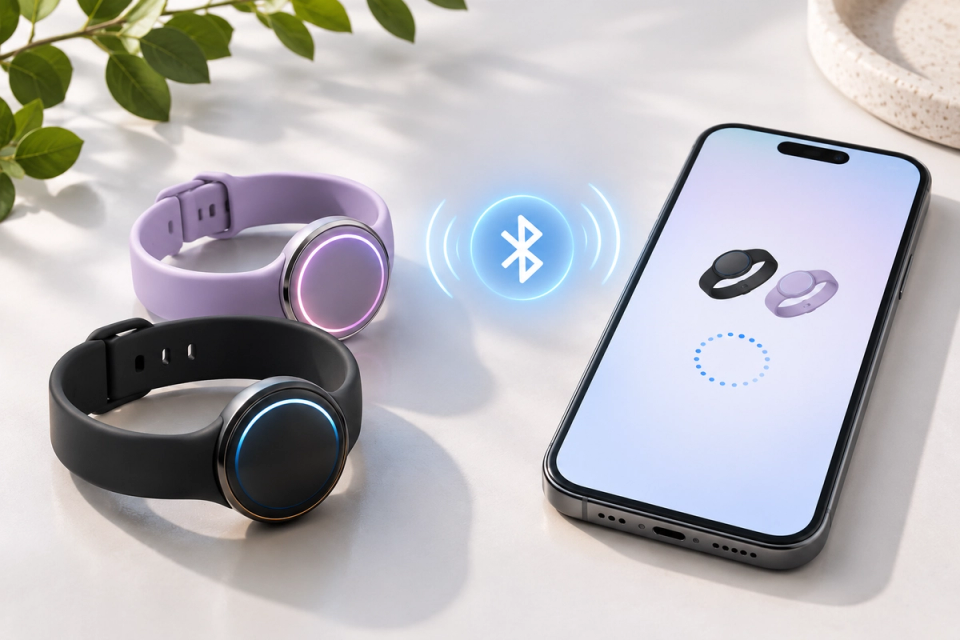
Bond Touch's published fourth-generation instructions describe starting discovery within the app and confirming the bracelet with its documented gesture. On Android, the instructions include selection of the BOND entry when prompted. On iOS, the system may present different confirmation screens. The important distinction is that the manufacturer's application manages the intended setup; a generic Bluetooth menu alone does not establish a working account configuration.
Totwoo specifically advises Android users against pre-pairing its jewellery through the general Bluetooth menu before using the app. Its iPhone procedure can involve system confirmation or an existing device entry. Follow the exact platform-specific guide for your jewellery. Do not assume that instructions written for Bond Touch are also appropriate for Totwoo. If the app recognises several similar wearables, ensure you confirm the correct physical unit rather than attaching someone else's bracelet to your account.
Check for a stale device association
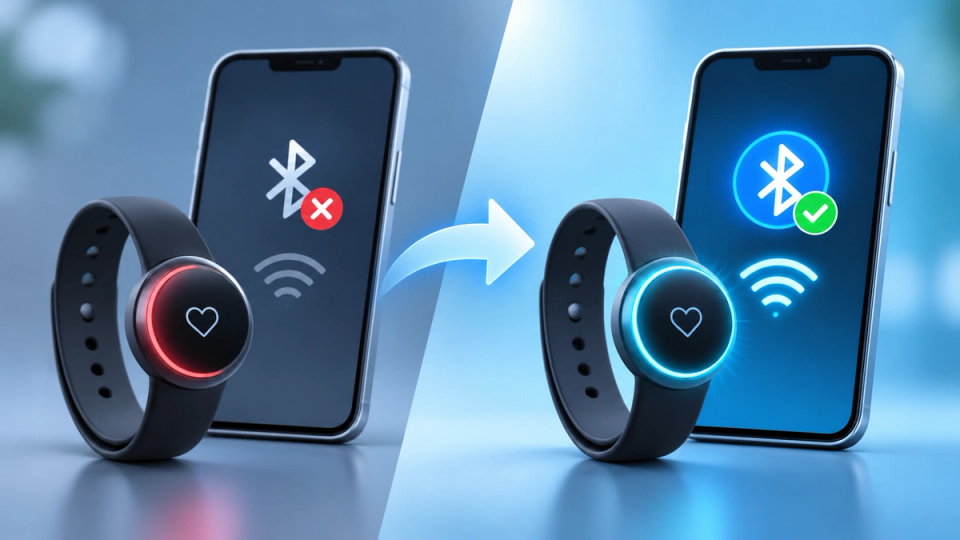
A wearable previously used with another phone may retain a connection that interferes with a new setup. Think about whether the failure began after a phone replacement, a previous pairing attempt or accidental association with the wrong handset. If the old phone is accessible, consult the manufacturer's disconnection procedure for the specific model and release the relevant local association before retrying.
Both brands publish guidance on removing certain stale Bluetooth entries during their documented reconnection procedures. Use the entry belonging to the actual bracelet, not every accessory listed on the phone. Distinguish the physical device association from the relationship between user accounts. Removing a contact or deleting an account is not an ordinary solution to a failed local Bluetooth discovery. If you are unsure which device entry belongs to the bracelet, identify it through the manufacturer's instructions before removing it.
Test reversible changes first
Refresh the Bluetooth connection using the normal phone controls and reopen the official app when the manufacturer recommends it. Check whether the problem changes with the bracelet next to the phone. If the operating system has recently been updated, review the app's current permissions and compatibility information. Restarting the handset may also be a reasonable controlled test; reopen the relevant app afterwards.
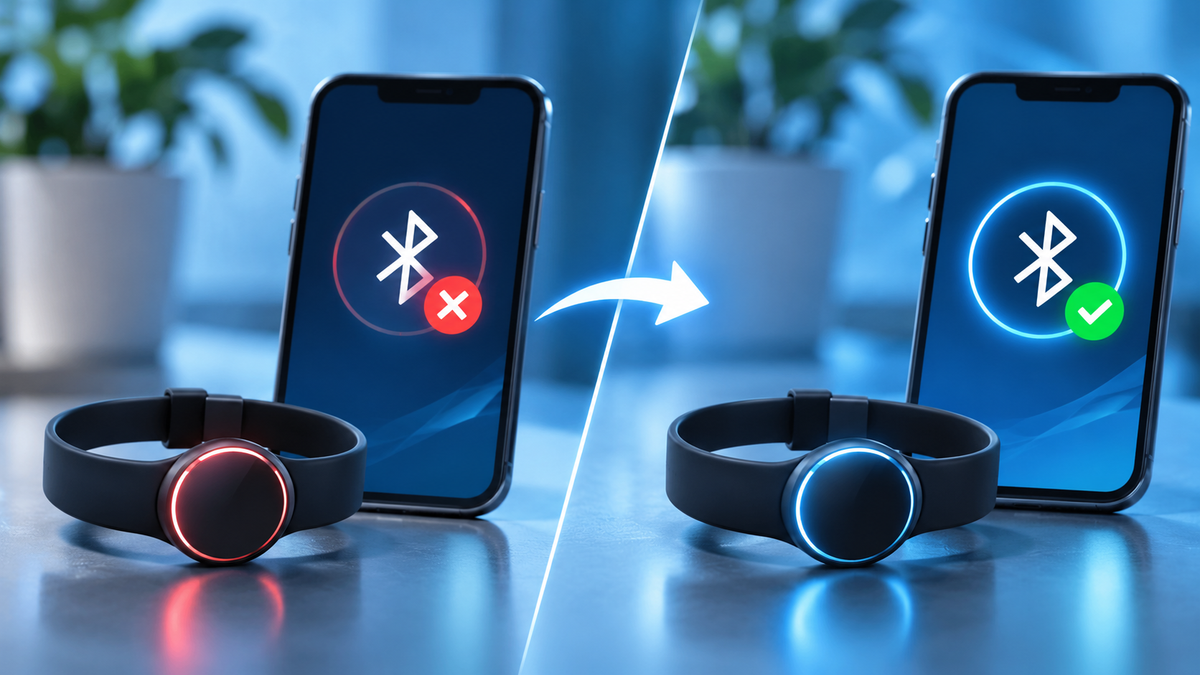
If the device is seen by the operating system but not by the application, do not assume that system pairing proves successful app integration. Check the brand-specific recovery guidance. Totwoo, for example, documents a restart for certain supported jewellery that remains stuck connecting. Do not apply that gesture to a different brand or unconfirmed model. If the exact reset procedure is not established, contact support instead of experimenting. Test each reversible change independently so you know which condition affected discovery.
For the underlying local connection, read the Bluetooth technology guide. If the model itself is unsuitable for the intended phone, consult the touch bracelet comparison.
Confirm pairing rather than merely seeing the device
When the app reports success, use the supported local test or activation interaction and check the actual connected status. Then exchange a deliberate touch with the intended contact in both directions. A name in a Bluetooth list is not proof that the service can deliver a remote signal. Repeat a test with the phone operating normally in the background if that is how the bracelet will be used.
If discovery or confirmation still fails, report the model, phone, operating system, app version, previous association and the exact stage that failed. Include a relevant screenshot without exposing private data. Do not replace hardware solely because one phone cannot discover it; the manufacturer may be able to identify a compatibility or association issue. Conversely, if the powered device consistently cannot be recognised using the supported method, seek appropriate assistance rather than endlessly clearing the phone's settings.
Frequently asked questions
Why does my phone see the bracelet but the app cannot connect?
A system Bluetooth entry is not the same as a completed application connection. Check the brand-specific setup and stale association guidance.
Should I remove all paired Bluetooth devices to fix the bracelet?
No. Only remove the identified bracelet association when the documented procedure calls for it.
Manufacturer instructions and further information
Troubleshooting & Compatibility Library
Complete guide
Main guides
- Bond Touch Troubleshooting: Common Problems and Solutions
- Totwoo Troubleshooting: Common Problems and Solutions
- Touch Bracelet App Setup and Pairing Guide
- Touch Bracelet Connection Problems and Solutions
Supporting guides
- Why Is My Bond Touch Bracelet Not Working?
- Bond Touch Bracelet Not Vibrating: Causes and Solutions
- Bond Touch Bracelet Not Charging: Troubleshooting Guide
- How to Reset a Bond Touch Bracelet
- Why Is My Totwoo Bracelet Not Working?
- Totwoo Bracelet Not Vibrating or Lighting Up
- Totwoo Bracelet Not Charging: Troubleshooting Guide
- How to Reset a Totwoo Bracelet
- How to Set Up and Pair Bond Touch Bracelets
- How to Set Up and Pair Totwoo Bracelets
- How to Connect a Touch Bracelet to a New Phone
- Why Does My Touch Bracelet Keep Disconnecting?
- Touch Bracelet Notifications Not Working: How to Fix Them