Why does my bracelet say connected but my partner receives nothing?
A connection problem can occur locally between a bracelet and phone, remotely between accounts or during delivery from the app back to the receiving wearable.
Map the route of a touch
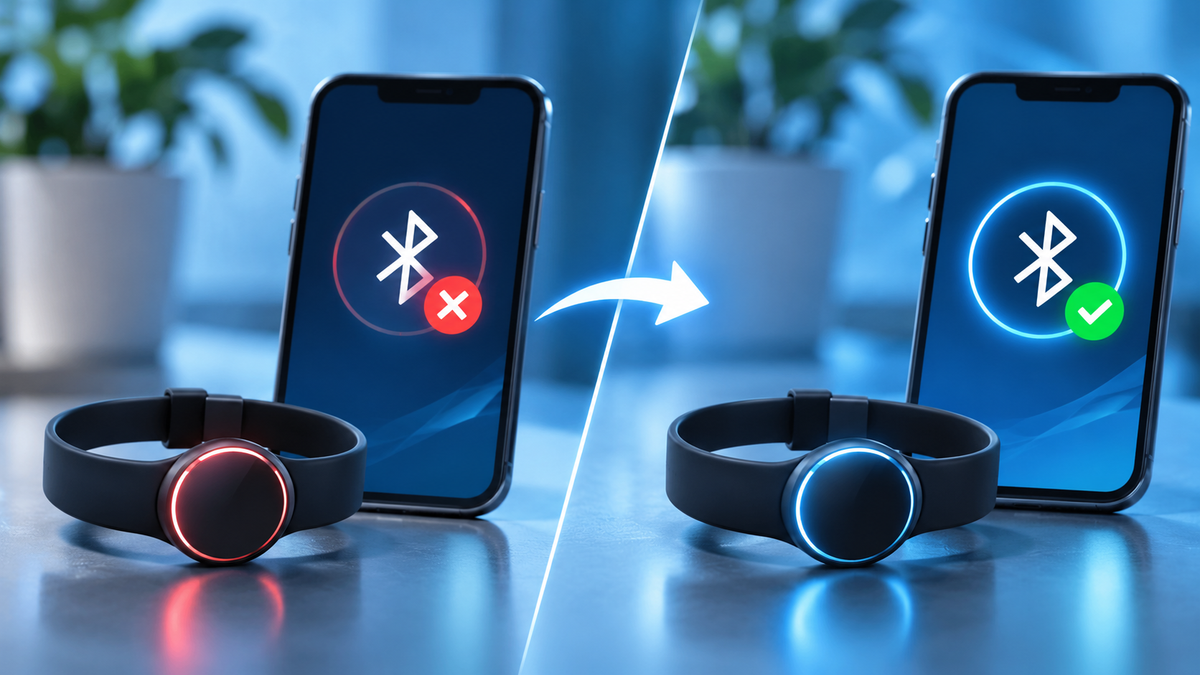
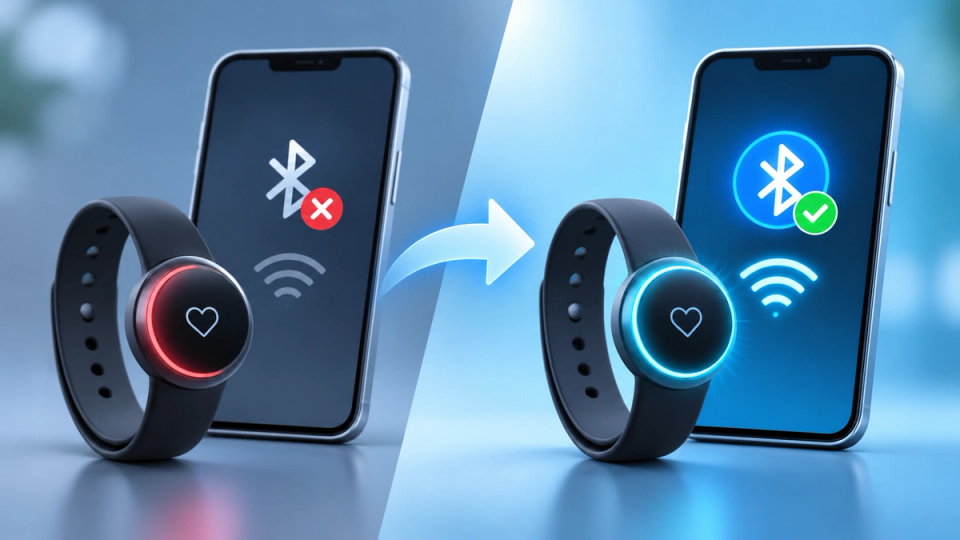
Imagine one person at home and another at work. The sender's bracelet communicates with the nearby phone, which sends the event over an internet service. The recipient's phone then needs to receive the relevant event and communicate with the recipient's wearable. Each stage has its own failure conditions. A local Bluetooth connection may remain active even when the phone cannot reach the internet, and an app may receive an event even when its physical bracelet is disconnected.
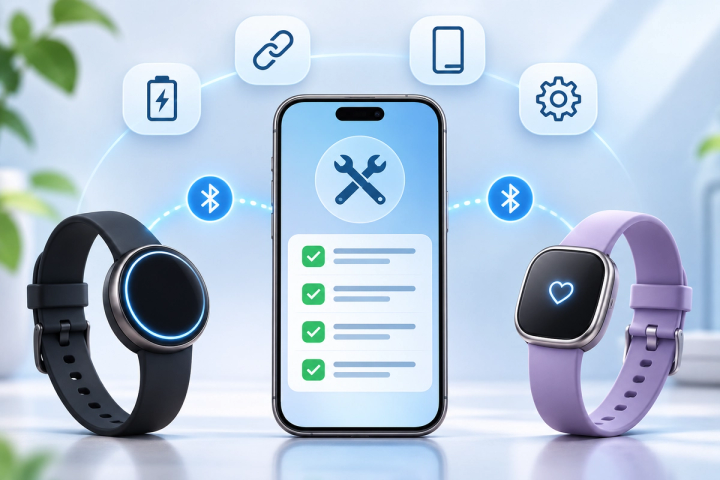
The complete troubleshooting guide provides a broader symptom map covering charging and model compatibility. This connection guide focuses on distinguishing the individual communications stages, which is essential before resetting either wearable. Record which user's phone indicates a connection, whether the event is visible in the app and whether the physical device produces its expected output. Do not assume the failing component is on the sender's side simply because the sender was the person who noticed the problem.
Create a controlled test
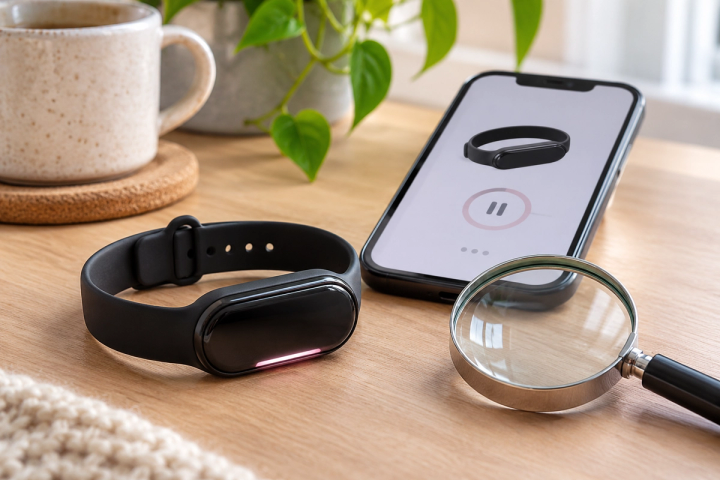
Ask the two users to agree on a brief time to test, rather than sending unexplained repeat signals throughout the day. Charge both wearables and keep the paired phones nearby. Open the correct app on both phones and verify the current connection status. Send one designated touch and record whether it was recognised on the sending side, received in the other user's app and reproduced by their wearable. Repeat in the reverse direction.
When this succeeds, change one condition at a time. Lock one phone and test again; restore that condition before changing the other phone. Switch from Wi-Fi to mobile data if you suspect network differences. A failure that occurs only after the screen is locked provides a different clue from a failure when the phones are both open and online. This method cannot establish the exact internal cause of every fault, but it helps avoid unnecessary changes to a working configuration.
Identify intermittent disconnections
If the connection drops repeatedly, look for a pattern rather than treating every event as a new pairing failure. Does the problem occur when the wearer walks away from the phone, when a battery-saving mode activates, after a software update or when the application is closed? The guide to bracelets that keep disconnecting explores these scenarios and ways to reproduce them without relying on an arbitrary daily reset.
Manufacturer guidance for both Bond Touch and Totwoo describes keeping the wearable close to its phone. Bond Touch's published range guidance is approximately three metres, and Totwoo gives similar advice for maintaining a stable link. Walls, bodies and other environmental conditions can affect real-world behaviour. Do not confuse this short local range with the distance between two users' homes. Those homes can be far apart when both local links and internet connections work.
Distinguish notification and pairing issues
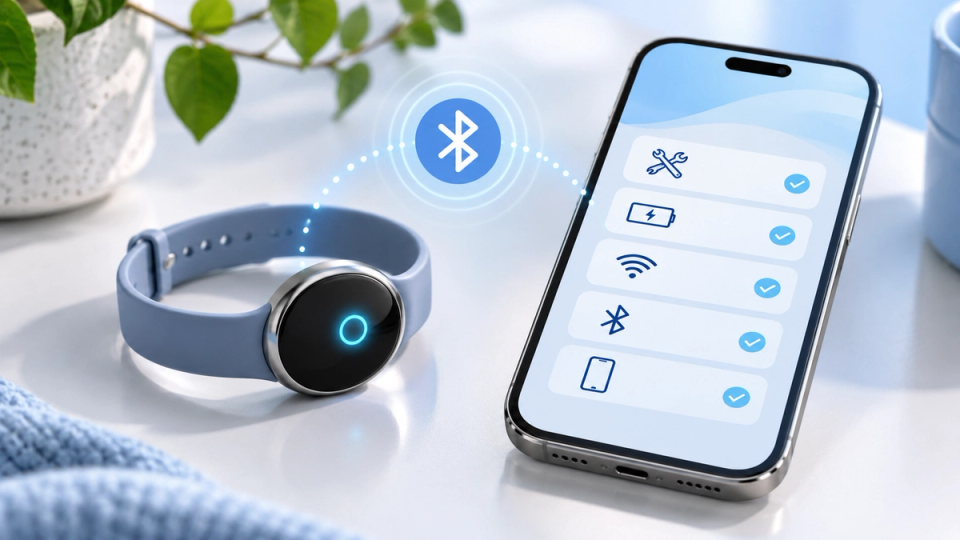
A notification fault can look like a connection fault because the recipient does not notice a touch. The notification troubleshooting guide separates application permissions, background activity and the wearable's output. A normal chat message is not necessarily intended to cause the same response as a designated touch. Use the correct event type before judging whether a feature is broken.
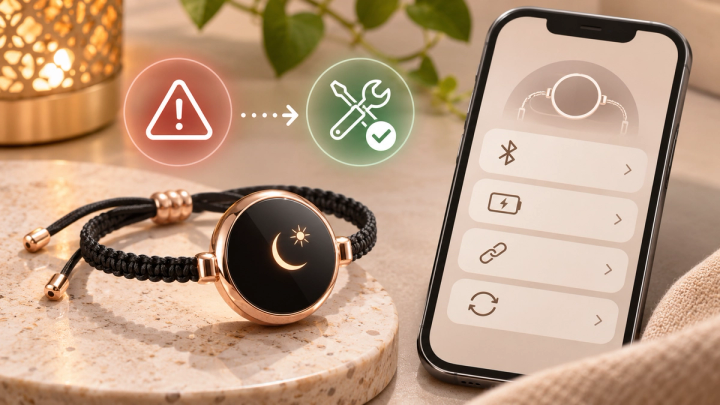
If the app cannot discover the bracelet at all, consult the Bluetooth pairing problem guide. It covers stale device entries, app-based discovery and the differences between iOS and Android. Removing an established device association may be appropriate after less disruptive checks fail, but do not erase a partner relationship to fix a local pairing issue. Follow the exact manufacturer's workflow and verify that the intended wearable is the one you reconnect.
For the distinction between local range and remote distance, read the local and long-distance connectivity guide. For a practical overview of phone dependence in a particular model, consult the Bond Touch 4 review.
Decide when the issue needs manufacturer support
If multiple controlled tests show the same failure after the necessary permissions, power and connectivity have been checked, prepare a concise description for the manufacturer's support service. Record whether the fault affects one direction or both, one contact or every contact, and one network or several. Include the model and software version rather than assuming all devices behave the same way.
Avoid describing a delayed or missing touch as a reliable indicator of another person's availability or intentions. Internet delivery and Bluetooth behaviour can change for reasons neither person controls. A consumer touch bracelet is not a guaranteed communication channel, so continue to use normal messaging for anything important. The objective of troubleshooting is to restore a pleasant optional interaction, not to make a wearable responsible for safety or for proving that someone is paying attention.
Frequently asked questions
Why does my bracelet say connected but my partner receives nothing?
Local pairing is only one stage. Check both phones' internet access, the intended account relationship and the receiver's wearable connection.
Does a long-distance bracelet have unlimited Bluetooth range?
No. The local Bluetooth link is short-range; long-distance delivery uses the connected phones and internet service.
Manufacturer instructions and further information
Troubleshooting & Compatibility Library
Complete guide
Main guides
- Bond Touch Troubleshooting: Common Problems and Solutions
- Totwoo Troubleshooting: Common Problems and Solutions
- Touch Bracelet App Setup and Pairing Guide
Supporting guides
- Why Is My Bond Touch Bracelet Not Working?
- Bond Touch Bracelet Not Vibrating: Causes and Solutions
- Bond Touch Bracelet Not Charging: Troubleshooting Guide
- How to Reset a Bond Touch Bracelet
- Why Is My Totwoo Bracelet Not Working?
- Totwoo Bracelet Not Vibrating or Lighting Up
- Totwoo Bracelet Not Charging: Troubleshooting Guide
- How to Reset a Totwoo Bracelet
- How to Set Up and Pair Bond Touch Bracelets
- How to Set Up and Pair Totwoo Bracelets
- How to Connect a Touch Bracelet to a New Phone
- Why Does My Touch Bracelet Keep Disconnecting?
- Touch Bracelet Notifications Not Working: How to Fix Them
- Touch Bracelet Bluetooth Pairing Problems: Causes and Fixes