Why is Totwoo connected in the phone settings but not the app?
Totwoo troubleshooting begins with separating the jewellery's local response from the app-to-app relationship and the phone's connection.
Find your exact jewellery model
Totwoo's touch jewellery is available in several decorative collections, but the appearance of the piece is not a reliable indicator of every electronic feature. A rechargeable vibration model, an older light-oriented product and a different connected accessory may have different maintenance instructions. Locate the product name or order details and consult the corresponding official manual. Do not assume that all bracelets displaying a similar moon, heart or other symbol use the same restart gesture or charging equipment.
The complete troubleshooting guide provides a general diagnostic framework. For Totwoo, it helps to distinguish the connection between the wearable and its owner's phone from the connection between two users' accounts. A failed invitation and an undiscoverable bracelet are different problems. An app may also show an existing relationship even if one person's jewellery is currently disconnected. Identify the failing layer before you attempt to change the setup.
Investigate an inactive bracelet
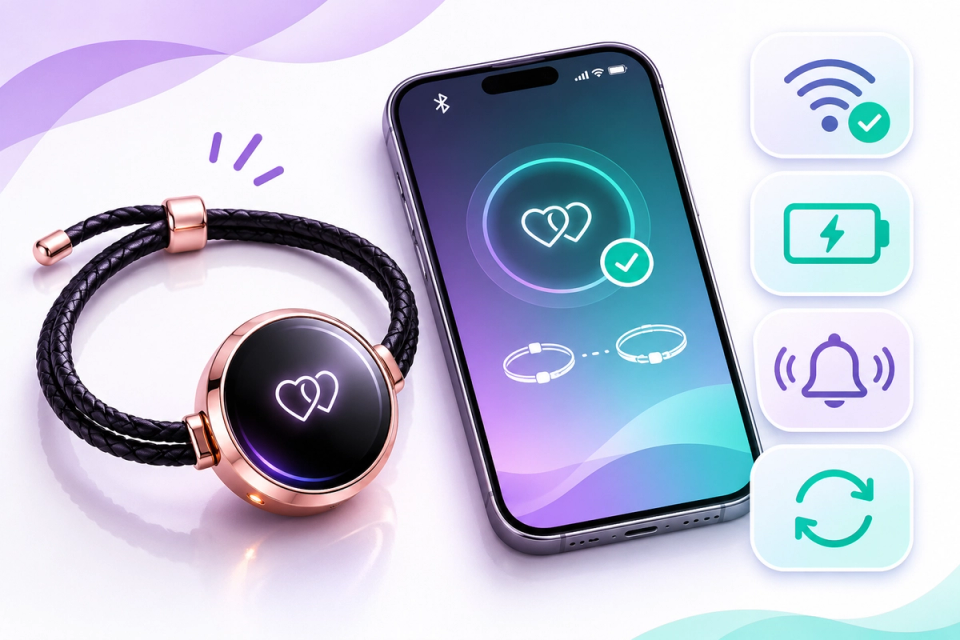
First check whether the jewellery responds to the activation gesture documented for the model. If it does not, confirm its power requirements and charge it with the correct accessory where applicable. A new bracelet that appears inactive on arrival may simply need initial charging. If the unit previously worked and has visible damage or unusual heat, stop charging it and seek support rather than repeating the procedure.
The Totwoo bracelet not working guide focuses on an unresponsive or unusable device, while the Totwoo charging guide explains how to isolate power supply, charger and module problems. Totwoo's help centre discusses trying an appropriate alternative USB source for its compatible charging accessories. Never assume a charger intended for another collection will work because the connectors look alike. Check the model-specific voltage requirements and do not force or improvise a connection.
Separate missing light from missing vibration
Not every interaction within a connected jewellery app is intended to produce a physical signal. Totwoo's connection troubleshooting documentation distinguishes its designated touch interactions from ordinary private chat messages. The latter are not automatically equivalent to a wearable vibration. Establish what the sender actually did and whether the recipient can see evidence of that event within the app.
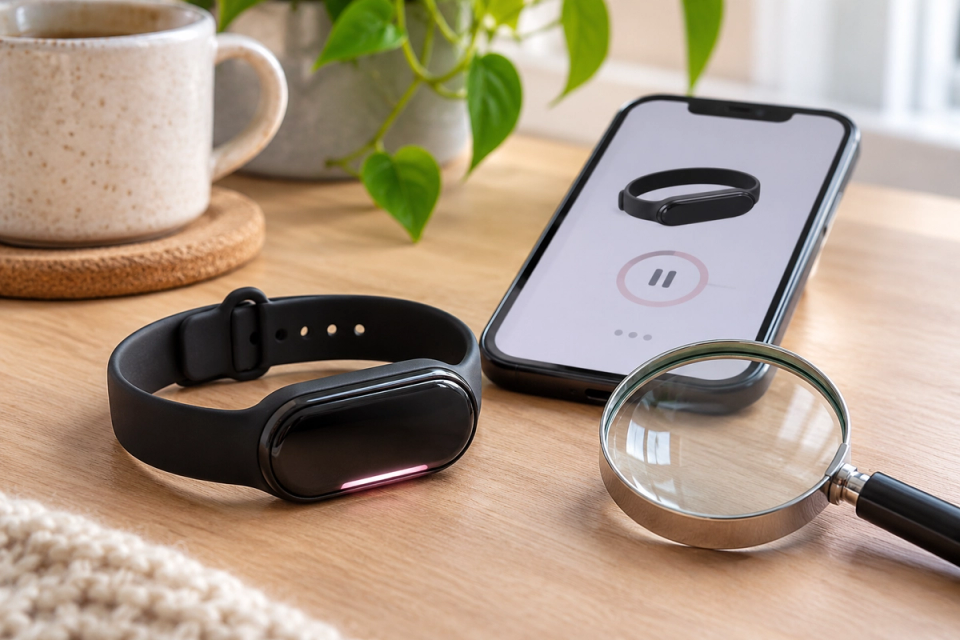
Our Totwoo light and vibration guide explores cases where one output works but the other does not. Check the reminder settings that apply to the model, then carry out a controlled touch test. If the app records the expected event and the bracelet is connected but never reproduces a supported output, report the exact behaviour to support. If neither the app nor the jewellery shows the event, investigate the relationship or internet connection instead of assuming that the motor has failed.
Re-establish the local connection carefully
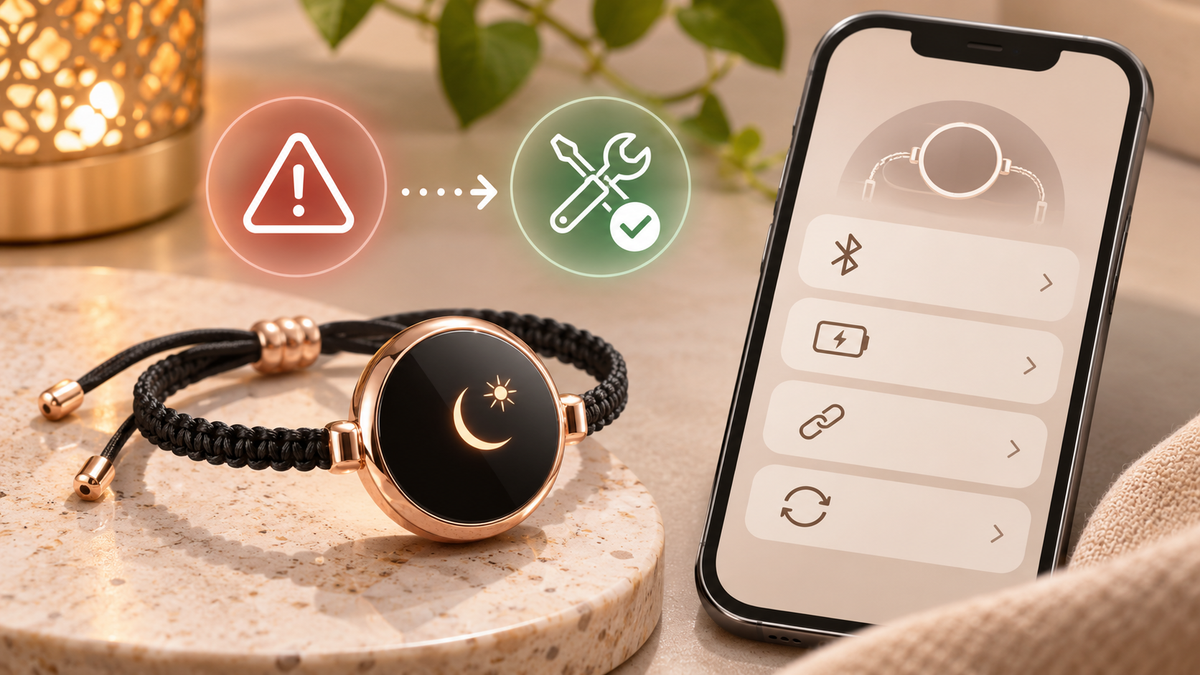
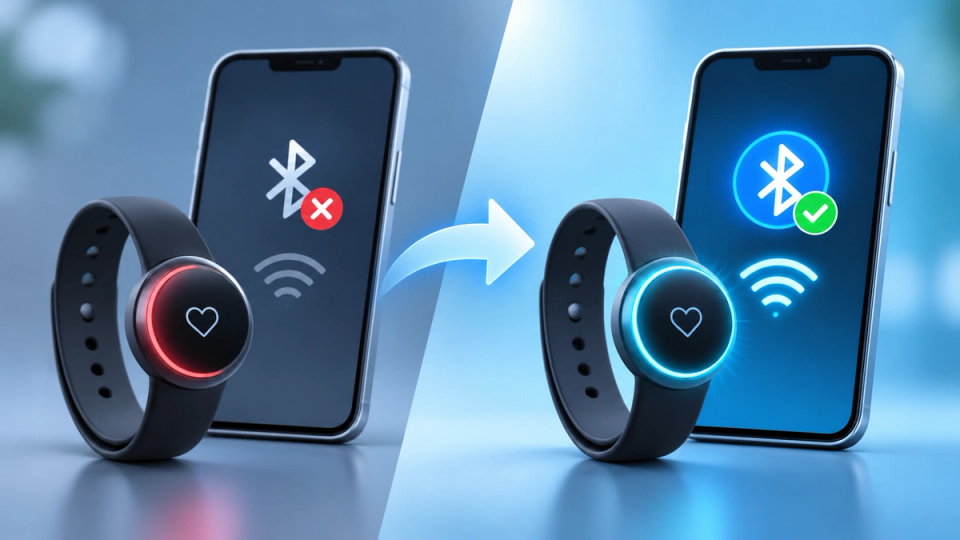
Totwoo's official troubleshooting page specifically advises Android users to initiate jewellery connection in the app rather than pre-pairing it through the phone's generic Bluetooth settings. On an iPhone, a previously connected device entry may need to be removed during a documented reconnection process. These are platform-specific details, not a universal instruction to forget every Bluetooth device on your phone.
Try the less disruptive checks first: confirm power, nearby phone range and internet connectivity, then reopen the app or restart the local Bluetooth connection. The Totwoo reset guide distinguishes restarting a supported jewellery module from unbinding it in the app. A restart can be useful for certain connection symptoms, but it should not be the default response to a missing touch from only one contact. Use the manufacturer's instructions and preserve the account relationship unless the actual problem requires a change there.
To identify which collection your jewellery belongs to, use our Totwoo collection guide. For the broader differences in design and phone requirements, read Left Unsaid's comparison of Bond Touch and Totwoo.
Collect evidence for technical support
If a problem persists, make a brief record of the product model, phone model, operating system, current app version and what happened during the last controlled test. Totwoo asks customers reporting certain issues to include their order information and a photograph or short video. Show the behaviour of the module or the relevant connection screen, without exposing passwords, verification codes or private chat contents.
If only one of a pair is failing, describe which one. If the device flashes unexpectedly, note whether a new event is visible in the application and whether accidental touches from clothing or a bag could have triggered it. If the failure began after changing phones, include that detail. This is more helpful than attempting a succession of unrelated settings changes. A repair or replacement decision should follow diagnosis and the applicable support policy rather than precede it.
Frequently asked questions
Why is Totwoo connected in the phone settings but not the app?
A system Bluetooth entry alone does not establish a successful application connection. Follow the platform-specific in-app procedure.
Does every Totwoo chat message make the jewellery vibrate?
No. The manufacturer distinguishes designated touch interactions from ordinary private chat messages.
Manufacturer instructions and further information
Troubleshooting & Compatibility Library
Complete guide
Main guides
- Bond Touch Troubleshooting: Common Problems and Solutions
- Touch Bracelet App Setup and Pairing Guide
- Touch Bracelet Connection Problems and Solutions
Supporting guides
- Why Is My Bond Touch Bracelet Not Working?
- Bond Touch Bracelet Not Vibrating: Causes and Solutions
- Bond Touch Bracelet Not Charging: Troubleshooting Guide
- How to Reset a Bond Touch Bracelet
- Why Is My Totwoo Bracelet Not Working?
- Totwoo Bracelet Not Vibrating or Lighting Up
- Totwoo Bracelet Not Charging: Troubleshooting Guide
- How to Reset a Totwoo Bracelet
- How to Set Up and Pair Bond Touch Bracelets
- How to Set Up and Pair Totwoo Bracelets
- How to Connect a Touch Bracelet to a New Phone
- Why Does My Touch Bracelet Keep Disconnecting?
- Touch Bracelet Notifications Not Working: How to Fix Them
- Touch Bracelet Bluetooth Pairing Problems: Causes and Fixes