Why is the app unable to find my partner?
Set up each Totwoo wearable on its intended owner's phone using the model-specific app instructions, then connect the two accounts.
Prepare the jewellery and app
Confirm that your purchase contains the intended electronic jewellery rather than only a decorative accessory. Look up the exact model in the official Totwoo user manuals because the collection design alone does not establish its activation, charging or vibration features. Charge a rechargeable module using the supplied or confirmed compatible equipment and follow the documented activation gesture.
The general app setup and pairing guide explains why there are two separate connections to establish. One connects the physical piece to its owner's phone; the other links the two users within the service. Start by installing the official Totwoo application on each supported phone and confirming that the required operating system, regional availability and account registration method are suitable. Each person should retain their own login and decide which optional permissions they accept. Avoid downloading an unofficial app simply because it has a similar name.
Register and resolve verification issues
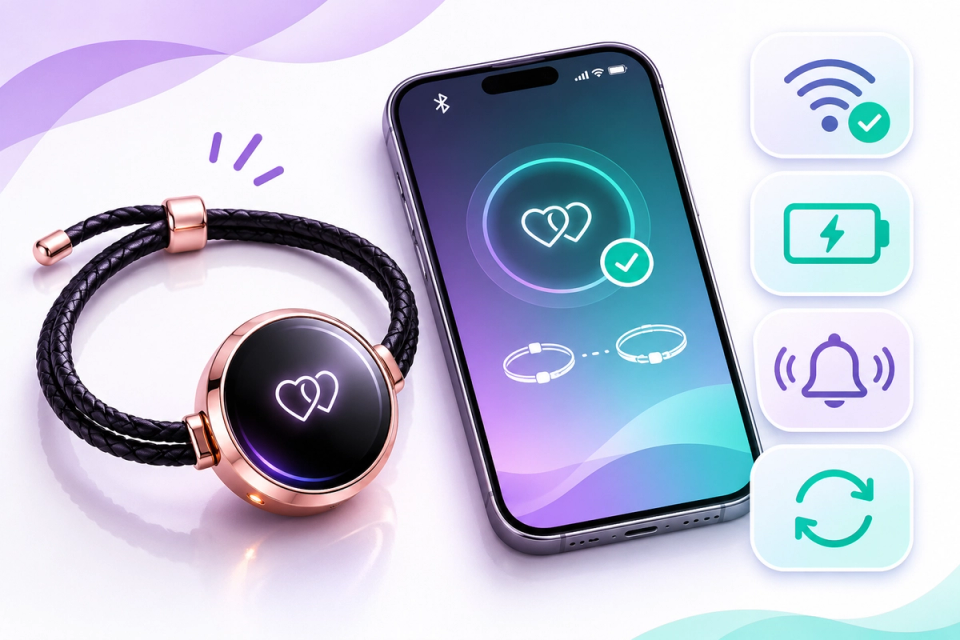
Follow the current in-app registration process using the intended account details. Totwoo's help centre discusses cases in which an SMS verification message fails to arrive. Check that the selected country code and number are correct, that the phone has a working mobile service and that an incoming message has not been filtered by the system. If registration cannot be completed, use Totwoo's official assistance rather than sharing a code with an unrelated third party.
An account registration issue does not establish that the physical bracelet is defective. If one person can register and the other cannot, focus on the affected account before changing the first user's hardware setup. Keep access to the original account if you have used Totwoo previously. Creating another account with different contact details can make it harder to locate the relationship that you originally established.
Connect the wearable inside the app
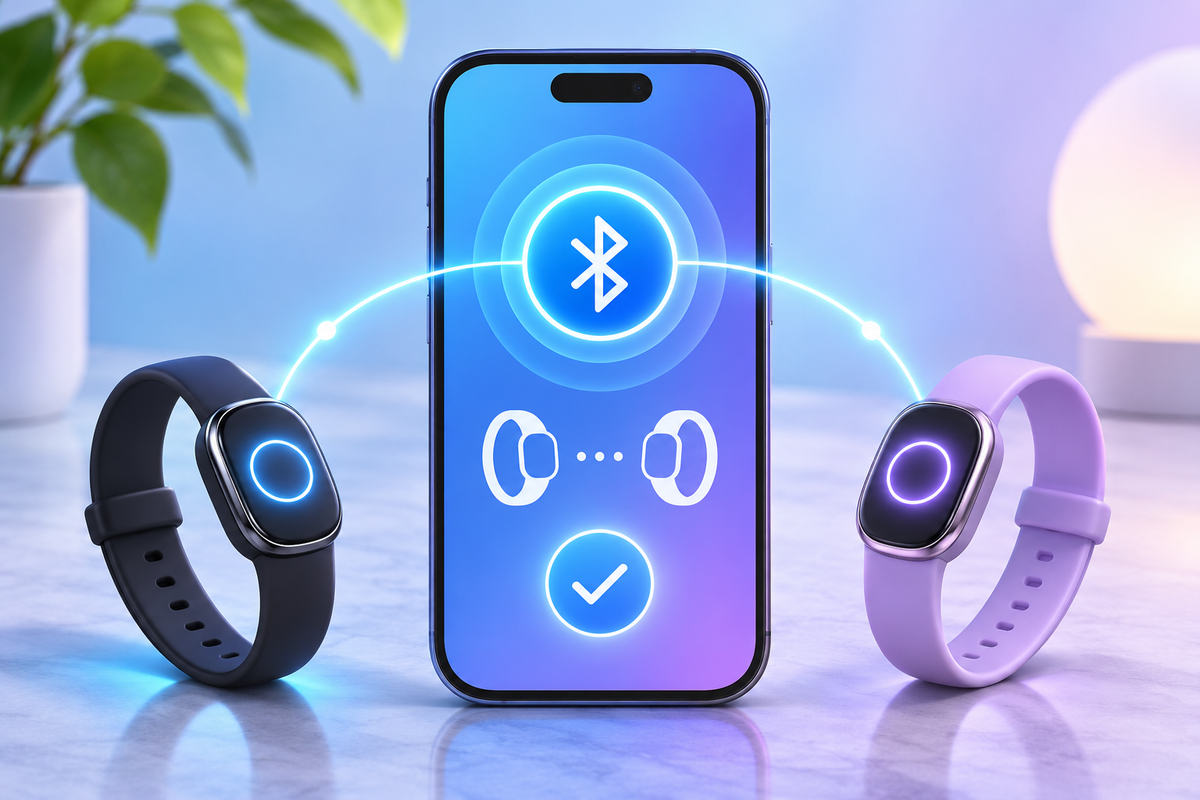
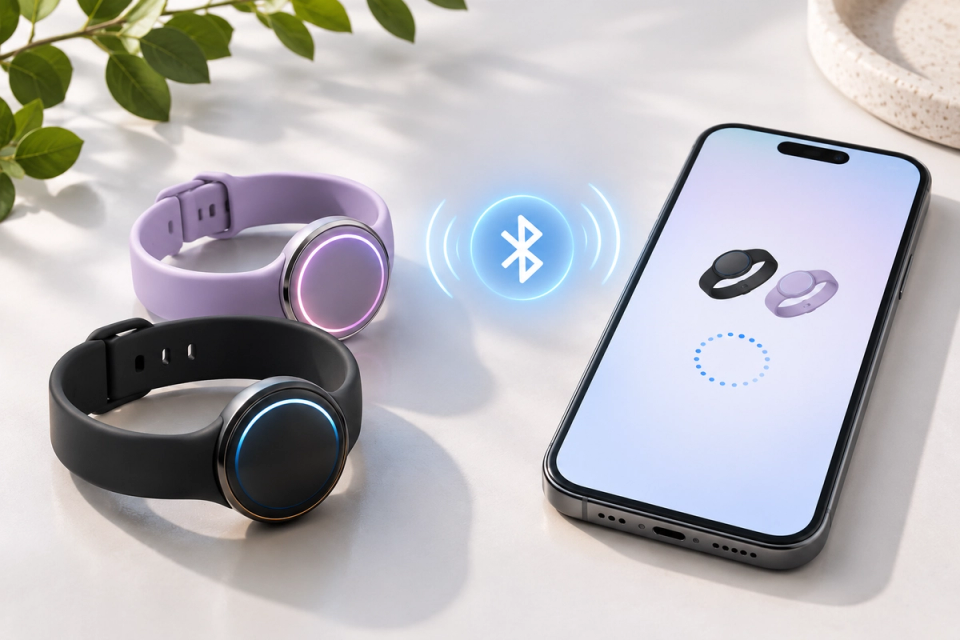
Open the app and follow the jewellery discovery steps in the manual for your model. Activate the charged wearable when requested and keep it near the phone. The manufacturer's Android troubleshooting guidance advises against establishing a system Bluetooth pairing before the application performs its own connection workflow. On iOS, the application and operating system may ask you to confirm a Bluetooth association. Follow those platform-specific instructions rather than treating both interfaces as identical.
If a piece was previously paired to another phone, use the appropriate disconnection procedure before attempting to associate it with the new handset. Totwoo's support material describes removing an old Bluetooth entry as part of certain reconnection workflows. Do not remove unrelated accessories from the phone settings. If discovery fails, check power, required permissions and whether the jewellery is still associated with a different phone. Confirm that the app identifies the actual piece you intend to use.
Establish the relationship with the other user
Once each device is locally connected, use the manufacturer's invitation workflow to connect the two accounts. Totwoo's documented phone-number invitation procedure requires the correct registered number; it also advises storing the contact with the international dialling code where applicable. If an invitation reports that the recipient is not registered, confirm the exact number and account details before assuming the bracelet pairing has failed.
Do not assume that buying another matching bracelet creates an additional simultaneous relationship. Check the specific model's supported pairing arrangement. The account connection between two people and the local Bluetooth pairing are separate, so a failed invitation is not a reason to restart a wearable that is already connected. Ask the intended person to accept the relationship themselves and verify that the application displays the correct contact.
If you want more than one relationship, check our Totwoo pairing limits guide. If your requirements exceed a paired configuration, compare the devices using the comparison of Totwoo and Bond Touch.
Test a real touch and background delivery
Exchange the designated touch interaction rather than testing only an ordinary chat message. Totwoo's documentation distinguishes these two actions; not every chat message is intended to make jewellery light up or vibrate. Check whether each app records the touch and whether the corresponding wearable produces its supported physical signal. Repeat in the reverse direction.
Next test after each phone has returned to its normal background state. Totwoo provides guidance on permissions and maintaining a stable connection, and advises reopening the app after restarting a phone. Keep the devices within appropriate local range and test a different network if delivery is inconsistent. If the configuration fails, record the exact stage and contact support with the model and phone information. Use ordinary messages for urgent or practical communication rather than relying on a newly configured touch signal.
Frequently asked questions
Why is the app unable to find my partner?
Verify that their registered account details match the invitation and check the international phone number format where applicable.
Should I pair Totwoo in Android Bluetooth settings first?
No. Totwoo's documented Android workflow instructs users to establish the connection through its app.
Manufacturer instructions and further information
Troubleshooting & Compatibility Library
Complete guide
Main guides
- Bond Touch Troubleshooting: Common Problems and Solutions
- Totwoo Troubleshooting: Common Problems and Solutions
- Touch Bracelet App Setup and Pairing Guide
- Touch Bracelet Connection Problems and Solutions
Supporting guides
- Why Is My Bond Touch Bracelet Not Working?
- Bond Touch Bracelet Not Vibrating: Causes and Solutions
- Bond Touch Bracelet Not Charging: Troubleshooting Guide
- How to Reset a Bond Touch Bracelet
- Why Is My Totwoo Bracelet Not Working?
- Totwoo Bracelet Not Vibrating or Lighting Up
- Totwoo Bracelet Not Charging: Troubleshooting Guide
- How to Reset a Totwoo Bracelet
- How to Set Up and Pair Bond Touch Bracelets
- How to Connect a Touch Bracelet to a New Phone
- Why Does My Touch Bracelet Keep Disconnecting?
- Touch Bracelet Notifications Not Working: How to Fix Them
- Touch Bracelet Bluetooth Pairing Problems: Causes and Fixes