Can I pair both people's bracelets to my phone first?
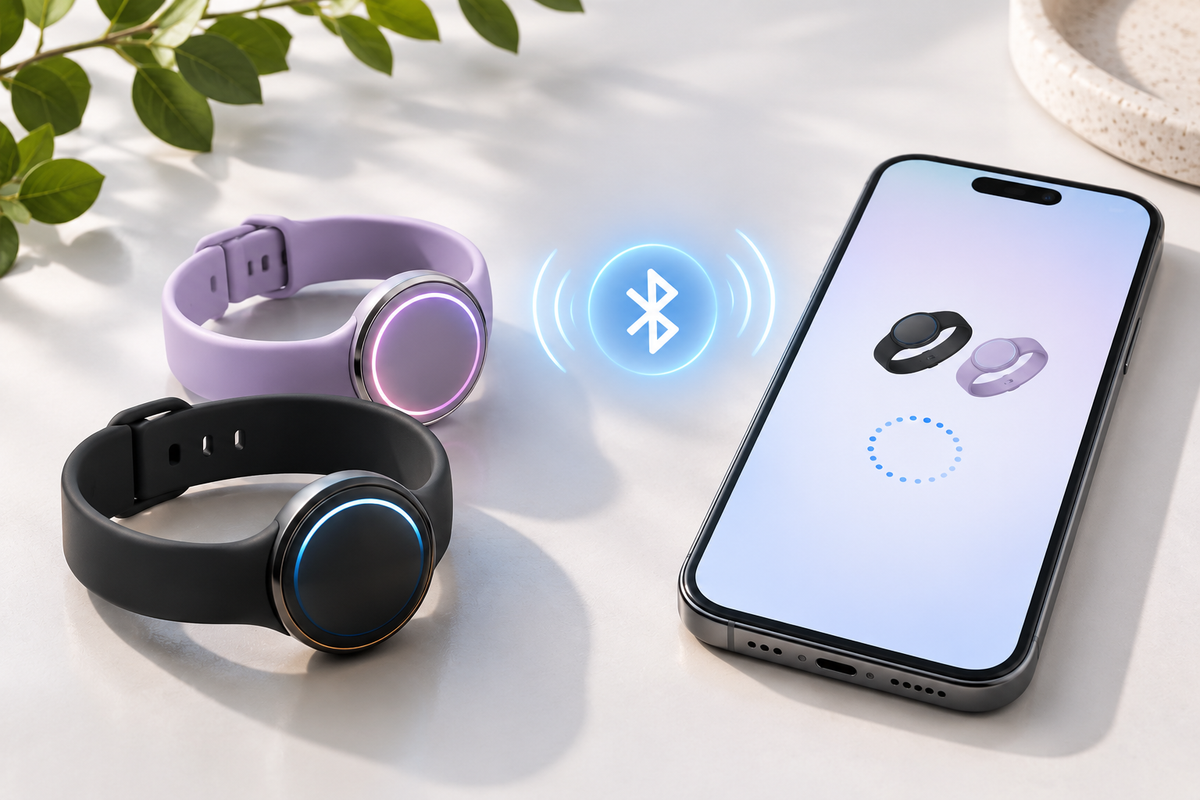
Pair each Bond Touch bracelet with its own supported phone through the official app, then establish and test the intended relationship.
Prepare both devices
Start by checking the exact model and the contents of the order. A bracelet band without its electronic module is not a functioning connected device. If the other person already owns a Bond Touch, identify that generation and check the manufacturer's current compatibility guidance before buying another. Differences between generations may affect available contacts and interactions even when a connection is supported.
Our touch bracelet app setup and pairing guide explains the distinction between local device pairing and the account relationship. Before beginning, charge each wearable with its correct equipment and make sure each person can install the official application on their own phone. Check the current operating system and app requirements, rather than relying on an old compatibility list. Use the official application store listing. Do not share passwords or verification codes between wearers, and retain access to any existing account rather than creating duplicate accounts unnecessarily.
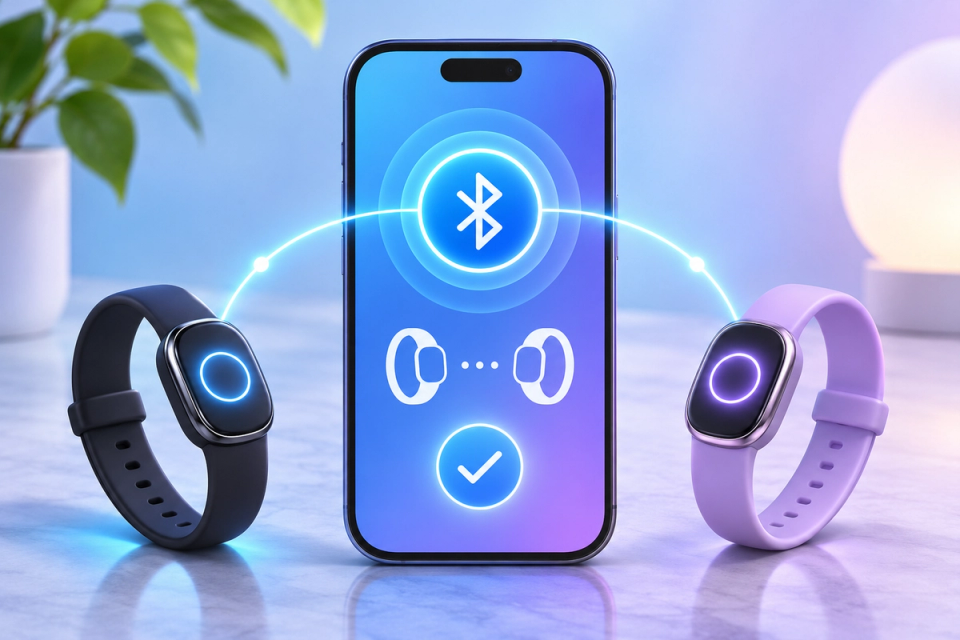
Pair a Bond Touch 4 on iPhone
The manufacturer's current fourth-generation pairing instructions describe starting with a charged bracelet worn on the wrist and Bluetooth enabled. Within the Bond Touch app, start the bracelet discovery workflow. When the application identifies the wearable, continue through the requested permissions and confirm the device with the specified double-touch interaction. Use the current instructions if the labels in the app differ from those shown in an older guide.
Keep other unneeded bracelets away from the discovery process. If the phone is attempting to reconnect to a previous module, identify which device is associated with the existing account before removing anything. Once the application reports success, check its connection status. The iPhone's generic Bluetooth list may be useful for diagnosing a stale connection, but it does not replace the manufacturer's in-app setup. If discovery fails, confirm that the bracelet has power and that the app can use Bluetooth before repeating the procedure.
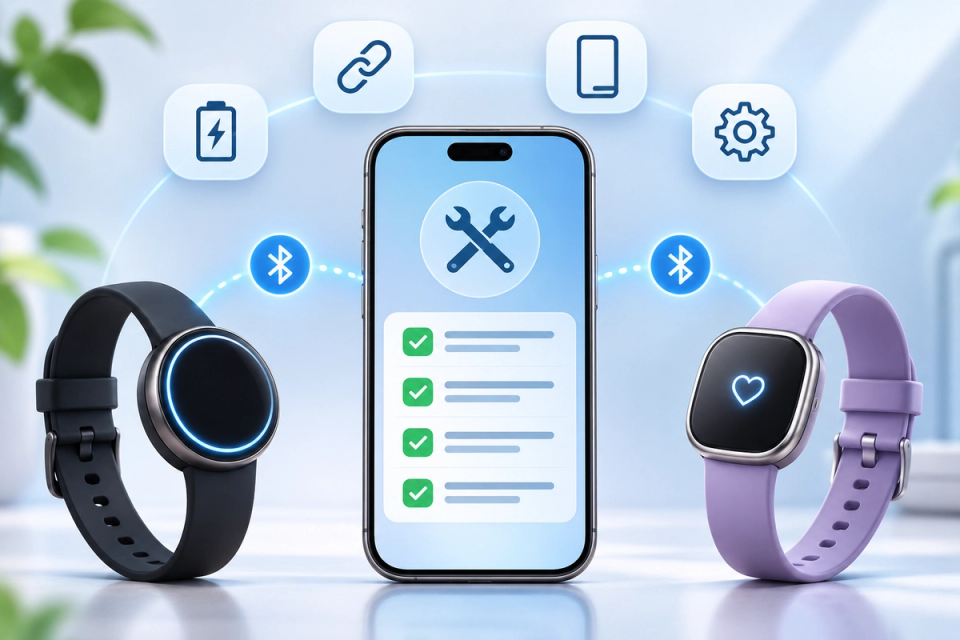
Pair on Android and check model differences
The official Bond Touch 4 Android guide uses the same general preparation, followed by app-based discovery. It describes selecting the BOND device when prompted and confirming the wearable using the specified gesture. Allow the relevant requested permissions so the app can communicate with the bracelet. Android menu names and permission prompts differ between phone manufacturers and operating system versions, so match the current official instructions rather than expecting identical screenshots.
If you own a Mini or an earlier generation, check the instructions for that exact model. For example, the Mini has its own confirmation interaction in the manufacturer's pairing guide. Do not mistake Bond Touch Lite, the smartwatch experience, for a physical bracelet that needs the same setup. If the phone is supported but the wearable cannot be discovered, keep the module nearby, check charge and investigate the current device association before assuming the hardware is defective.
Connect to the intended person
A successfully paired wearable is now connected locally, but it still needs the intended account relationship for a remote touch. Follow Bond Touch's current invitation procedure. Ask the other person to confirm the account information used for the invitation and accept it from their own account. If the invitation does not appear, check that the correct identifier was used rather than resetting the physical bracelet.
Users with several existing contacts should confirm which relationship they intend to test. Contact capacity and available features vary by device generation. A local Bluetooth connection does not automatically connect the wearer to every other person using the app. Each participant should understand which relationship is active and which optional information they choose to share. Do not treat permission to exchange a touch as permission to share unrelated personal information.
If you want several distinct account relationships, read the Bond Touch multiple connections guide. For context on the fourth-generation wearable before setup, consult the Bond Touch 4 review.
Test before leaving the setup session
Exchange a deliberate touch in both directions with the phones close to the wearables. Ask each participant to confirm whether the app and bracelet give the expected response. Once that works, repeat a test with the app operating normally in the background. If the connection works only when the screen is active, review the manufacturer's operating-system-specific guidance.
Keep a record of the model, charger and official support links in case a phone is replaced later. A missed touch can result from charge, local connection, internet or app conditions, so retain ordinary messaging for important communication. If installation remains unsuccessful, collect the phone model, app version and specific failure stage for support. Completing a controlled test is more meaningful than merely reaching a setup completion screen.
Frequently asked questions
Can I pair both people's bracelets to my phone first?
Each wearer should follow the intended local device and account setup. Avoid associating another person's bracelet with your account merely to test it.
Do I need to use the same phone operating system as my partner?
Not necessarily. Confirm that each phone and the exact device configuration meet the current manufacturer requirements.
Manufacturer instructions and further information
Troubleshooting & Compatibility Library
Complete guide
Main guides
- Bond Touch Troubleshooting: Common Problems and Solutions
- Totwoo Troubleshooting: Common Problems and Solutions
- Touch Bracelet App Setup and Pairing Guide
- Touch Bracelet Connection Problems and Solutions
Supporting guides
- Why Is My Bond Touch Bracelet Not Working?
- Bond Touch Bracelet Not Vibrating: Causes and Solutions
- Bond Touch Bracelet Not Charging: Troubleshooting Guide
- How to Reset a Bond Touch Bracelet
- Why Is My Totwoo Bracelet Not Working?
- Totwoo Bracelet Not Vibrating or Lighting Up
- Totwoo Bracelet Not Charging: Troubleshooting Guide
- How to Reset a Totwoo Bracelet
- How to Set Up and Pair Totwoo Bracelets
- How to Connect a Touch Bracelet to a New Phone
- Why Does My Touch Bracelet Keep Disconnecting?
- Touch Bracelet Notifications Not Working: How to Fix Them
- Touch Bracelet Bluetooth Pairing Problems: Causes and Fixes