Do I need to buy new bracelets when changing phones?
A phone transfer should preserve the existing user relationship wherever the service supports it while establishing a new local wearable connection.
Prepare before erasing the old phone
Replacing a phone can affect a connected bracelet even when the physical wearable and the other person's device remain unchanged. The phone stores application data and local Bluetooth associations, while the connected service manages the account relationship. Moving an application icon or restoring a phone backup does not necessarily restore the wearable's local association or all required permissions.
Use the app setup and pairing guide to understand the difference between these two types of connection. Before wiping a phone for trade-in, confirm the original account's login and recovery method, the exact bracelet model and the current support requirements for the new phone. Make sure the wearable is charged and that you have its compatible charging accessory available. Do not delete the existing account or remove a relationship just because a handset is being replaced. Check what the manufacturer says must happen to the old local device association.
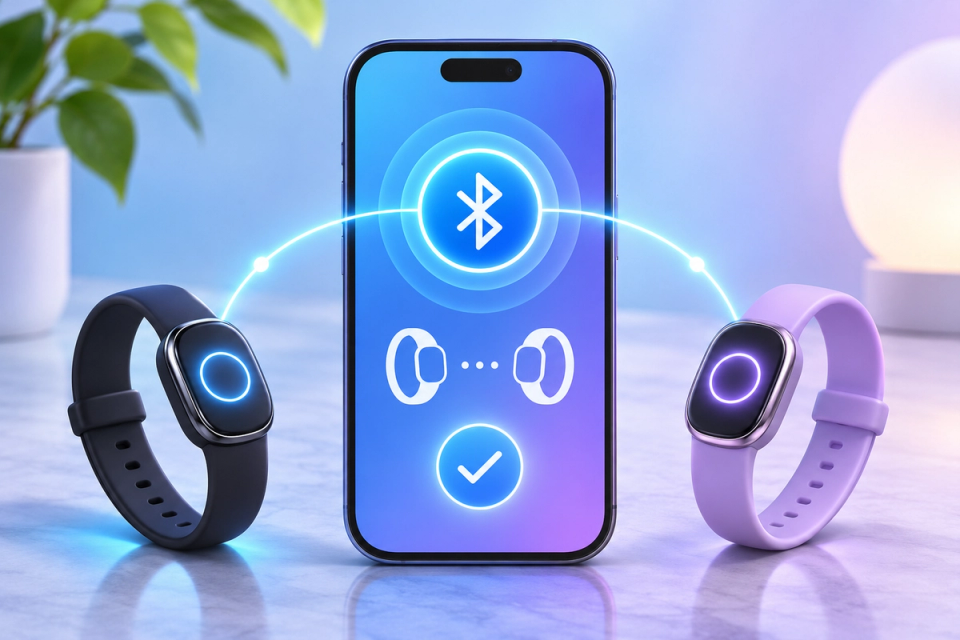
Prepare the replacement phone independently
Check the current official app listing for the operating system and phone you intend to use. A newer handset does not necessarily guarantee compatibility with an old wearable or the particular version of an application. Install the official app from the appropriate store and sign in using the existing account where supported. Complete the service's legitimate authentication process; never ask another person to share their own verification codes to bypass it.
Review the permissions requested by the current application. A transferred phone backup may not carry over the same Bluetooth, notification and background activity choices. Confirm these individually and distinguish the permissions needed for the touch feature from optional data-sharing functions. If the app does not show the original relationship, check whether you signed into the correct account before sending a new invitation. A missing contact may be an account issue rather than a defective bracelet.
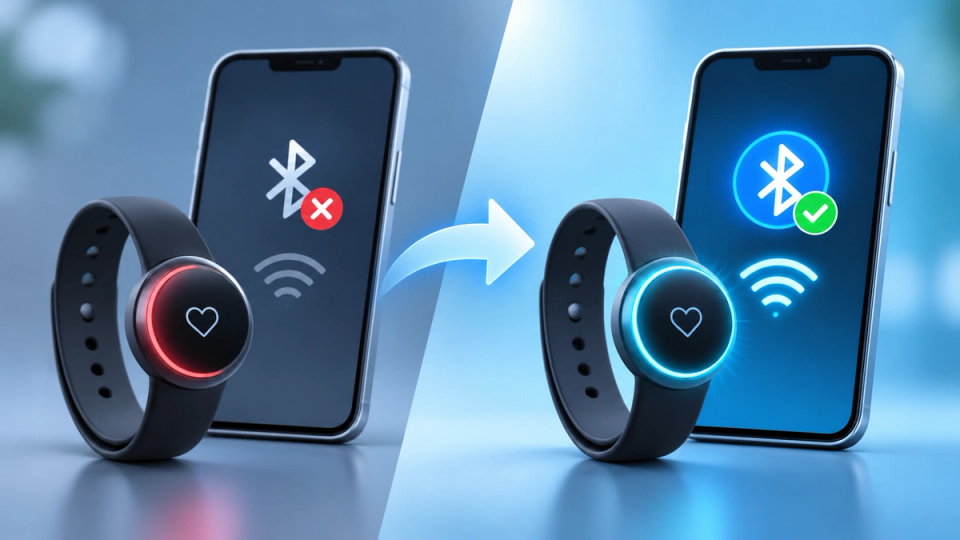
Move the local Bond Touch association
For Bond Touch owners, the manufacturer's disconnection instructions describe removing the local bracelet association within its app and clearing the corresponding BOND entry in the old phone's Bluetooth settings when appropriate. If the old phone remains accessible, consult the official transfer and disconnection guidance before proceeding. The objective is to release the relevant device association without deleting the user's identity or unrelated contact information.
On the replacement handset, follow the pairing instructions for the exact physical module. Bond Touch 4 and Mini have their own documented confirmation procedures. If you use Bond Touch Lite on a smartwatch, follow the applicable watch-to-phone transfer guidance rather than instructions intended for a dedicated bracelet. Check whether the new phone recognises the wearable before attempting to test a remote touch. If the previous handset is lost or broken, use official support for any unresolved ownership or connection issue.
Move a Totwoo wearable to the replacement phone
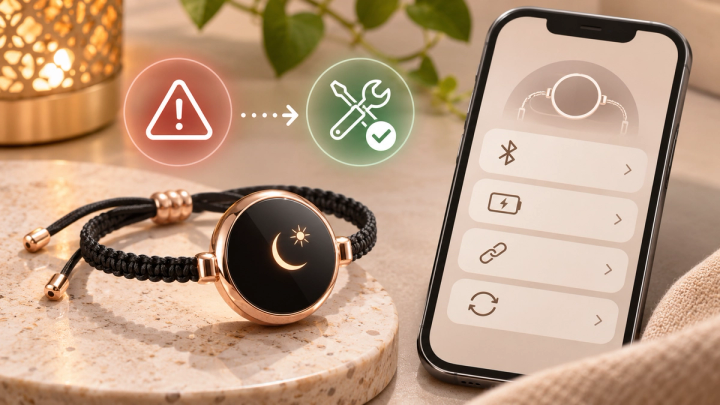
Totwoo's connection documentation states that its jewellery is not intended to maintain simultaneous local associations with multiple phones. If the previous handset can still be accessed, use the appropriate device-management and Bluetooth disconnection workflow before connecting the module to the replacement. Its instructions specifically address forgetting an old iPhone Bluetooth association or removing an inappropriate Android pairing when necessary.
Install and open the correct application on the new phone, then follow the in-app connection process for the jewellery. Android users should not pre-pair the device in the general Bluetooth menu. Check that the application displays the intended account and contact. If the old phone is unavailable and the connection remains blocked, provide the manufacturer with the model and circumstances rather than attempting an undocumented factory reset or creating several new accounts.
Before replacing a phone, check the phone compatibility guide. For the published differences in phone dependence across models, read the connected bracelet comparison.
Confirm the complete experience after transfer
Once the new phone recognises the wearable, arrange a controlled touch test with the other participant. Confirm whether the touch appears in the application and whether the wearable gives the expected physical response. Test both directions, then repeat when the new phone is locked or the application operates in the background. This may expose permission differences that were not obvious during installation.
If the new phone works while the old phone is turned off but fails when both are nearby, investigate the old association using the manufacturer's guidance. Keep the original account recovery information until the transfer is complete. If the problem persists, tell support which phone was replaced and at what step the new connection fails. Ordinary communication should remain available throughout the transfer rather than depending on a wearable that has not yet been verified.
Frequently asked questions
Do I need to buy new bracelets when changing phones?
Not automatically. Check the new phone's compatibility and the manufacturer's account and local pairing instructions first.
What if I no longer have my old phone?
Use the official recovery and support process if the existing association cannot be cleared. Do not guess at a hardware reset.
Manufacturer instructions and further information
Troubleshooting & Compatibility Library
Complete guide
Main guides
- Bond Touch Troubleshooting: Common Problems and Solutions
- Totwoo Troubleshooting: Common Problems and Solutions
- Touch Bracelet App Setup and Pairing Guide
- Touch Bracelet Connection Problems and Solutions
Supporting guides
- Why Is My Bond Touch Bracelet Not Working?
- Bond Touch Bracelet Not Vibrating: Causes and Solutions
- Bond Touch Bracelet Not Charging: Troubleshooting Guide
- How to Reset a Bond Touch Bracelet
- Why Is My Totwoo Bracelet Not Working?
- Totwoo Bracelet Not Vibrating or Lighting Up
- Totwoo Bracelet Not Charging: Troubleshooting Guide
- How to Reset a Totwoo Bracelet
- How to Set Up and Pair Bond Touch Bracelets
- How to Set Up and Pair Totwoo Bracelets
- Why Does My Touch Bracelet Keep Disconnecting?
- Touch Bracelet Notifications Not Working: How to Fix Them
- Touch Bracelet Bluetooth Pairing Problems: Causes and Fixes