Prepare the file, connect the locket and verify playback
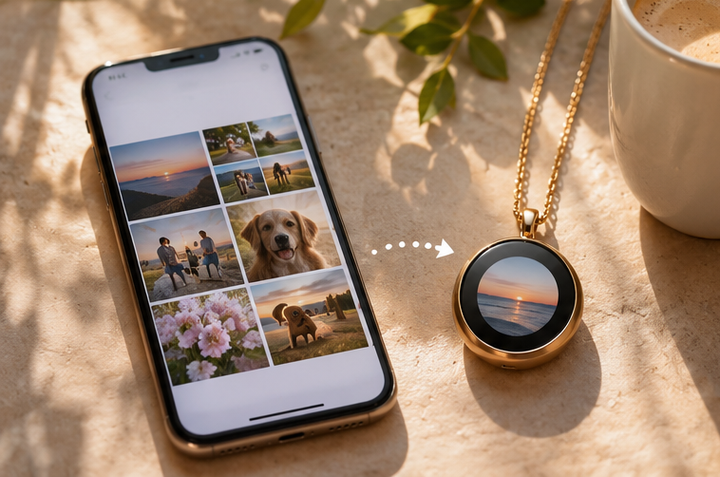
To add media to a smart locket, use its supported companion app and follow the instructions for that exact model. Prepare a small test photograph, charge and connect the device, transfer the image and confirm it plays correctly. Once that succeeds, add the rest of the selected content. Preserve the originals outside the locket.
Choose and prepare photographs
Start from the highest-quality original available, not a screenshot of a heavily compressed social media image. Select a subject that is clear at a small scale and make a working copy. A photograph of two faces close together may work better than a landscape with people far away. Use a crop preview where available, keeping important details away from the outer edges. When selecting a slideshow, put the photographs in an order that makes sense rather than simply choosing the newest images from the gallery. The How Smart Lockets Work: Photos, Videos and AI Memories explains how a slideshow, a clip and an animated image offer different viewing experiences.
Select a suitable video
A short clip works best when its meaning is visible without requiring extended context. Choose a wave, a smile, a pet running towards the camera or another small action. Totwoo's current FAQ states that the Tree of Life model accepts a clip of no more than five seconds and seven megabytes and plays it silently. Other models may differ. Trim a copy of the original and check the exported result before starting the transfer. If the file is too large, use a supported export setting rather than renaming its extension; renaming does not change the actual media encoding.
Connect through the correct app
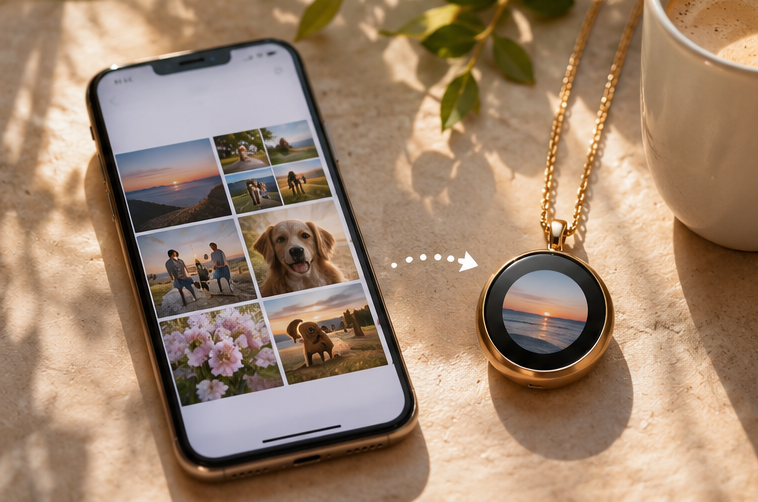
Charge the locket according to its instructions and install the official companion app. Enable Bluetooth and any permission the app legitimately needs for finding the wearable or accessing the selected picture. Follow the in-app connection instructions rather than assuming that selecting the device in the phone's general Bluetooth menu completes the setup. Some products use a connection managed entirely inside their app. Keep the pendant close to the phone while you prepare the transfer. If this is a gift, choose the documented preparation mode so the recipient is not permanently dependent on your own account.
Transfer and test before adding everything
Send one ordinary photograph first. Wait for the app to report that synchronisation has finished, then open the pendant and check what actually appears. If it is the wrong picture or the crop is unsuitable, adjust the copy and retry. Once the first test succeeds, add the remaining media and review the playback order. Totwoo's FAQ describes a sequence in which a saved clip appears before the photographs when both are included; check the software for your version. Avoid disconnecting the device or moving the phone away during a transfer. If an update fails repeatedly, consult the Smart Locket Not Connecting: Bluetooth and App Troubleshooting.
Verify viewing away from your phone
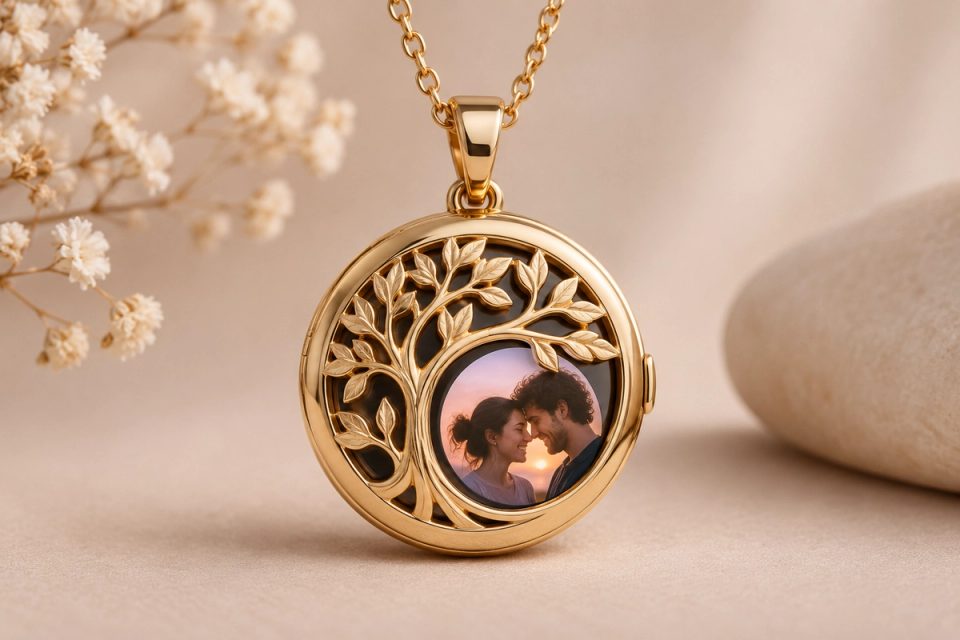
After a successful upload, test the feature you actually intend to use. Put the phone aside and open the locket. Check that the selected photo is available and that the image is recognisable. This is especially useful before travelling or giving the device to a person without a smartphone. The Do Smart Lockets Work Without Internet? discusses the distinction between local viewing and editing the content. Keep an independent backup of every original, even if the transfer reports success. Local storage on a wearable should be considered a convenience copy rather than an archive.
Keep control of future changes
When you replace a slideshow, confirm what will happen to the previous contents before accepting a deletion or reset prompt. Preserve the previous selection in a named folder if you may want to restore it later. If several family members send photographs for a gift, agree who has permission to upload them and use only the selected files. Avoid giving an app access to an entire private photo library if the operating system offers a suitable selected-photo option. If the recipient will make their own changes, give them the quick start instructions and explain the account handover process. For the app requirements of other necklace families, read the connected necklace compatibility guide.
Frequently asked questions
Can I upload a full-length film?
Not on a device with a short clip limit. Trim a separate copy to the model's requirements.
Why is the original still important?
It can be edited again or moved to another device if the pendant stops working.
Sources
Smart Lockets Library
Complete guide
Main guides
- Totwoo Tree of Life AI Smart Locket: Features, Benefits and Limitations
- How Smart Lockets Work: Photos, Videos and AI Memories
- Smart Lockets as Meaningful Personalised Gifts
- Smart Locket Setup, Maintenance and Troubleshooting
Supporting guides
- Smart Lockets vs Traditional Photo Lockets
- Totwoo Smart Locket: Gold vs Silver
- Digital Photo Lockets vs Heartbeat Necklaces
- How AI Moving Memories Bring Photos to Life
- Do Smart Lockets Work Without Internet?
- Smart Locket Privacy and Personal Photo Security
- Smart Lockets for Long-Distance Relationships
- Smart Lockets for Mothers and Grandmothers
- Smart Memorial Lockets for Remembering Loved Ones
- Smart Lockets for Remembering Pets
- Smart Locket Battery Life and Charging Guide
- Smart Locket Not Connecting: Bluetooth and App Troubleshooting
- Are Smart Lockets Waterproof? Everyday Care and Protection