Set up the device, then test it without the phone
A reliable first setup begins with charging, installing the official app, connecting the correct locket and transferring a small test image. Check that the image actually appears before adding more content. Keep the included charger and any original photos in a safe place. If something fails, identify whether the problem is power, the phone connection or the content transfer rather than resetting everything immediately.
Prepare before connecting
Unpack the necklace on a soft, dry surface and check for visible damage. Locate the included charging equipment and read the model-specific quick start instructions. Connect the charger in the orientation recommended by the manufacturer, without forcing a connector into the pendant. Install the official companion app through your phone's normal app store. Check that your operating system meets the current requirements and review requested permissions. An app for a different brand of wearable will not automatically work just because both devices use Bluetooth. If the locket is intended as a gift, use the documented gift preparation workflow before linking it to a permanent account.
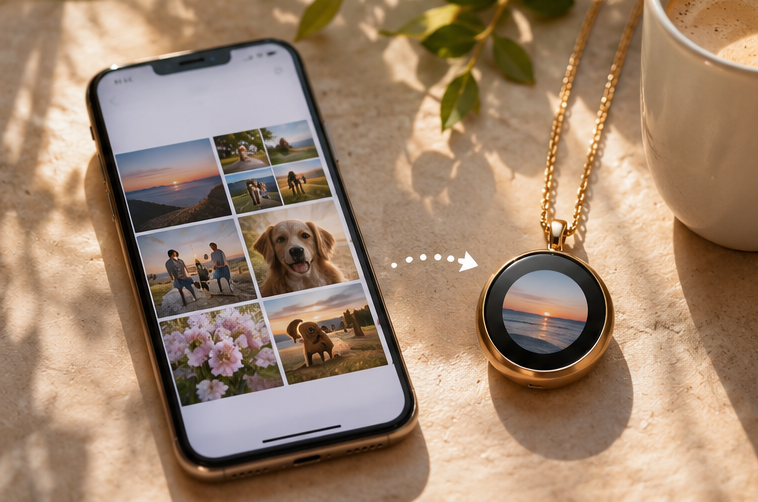
Pairing and a first transfer
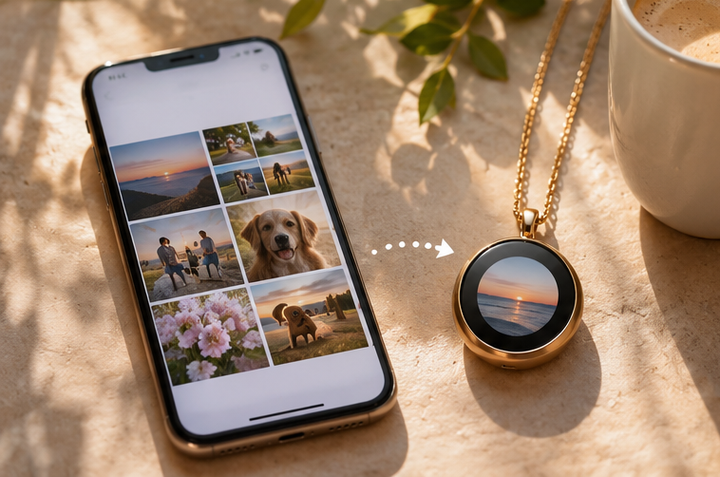
Start with a single uncomplicated image. A small test avoids wasting time preparing an entire slideshow when a basic connection problem has not yet been resolved. Keep the phone nearby during the transfer and follow the app prompts until the process reports completion. Open the necklace and confirm that the image is legible. If it is cropped poorly, edit a copy of the original and try again. The Smart Lockets: The Complete Guide explains why the necklace's purpose differs from touch communication devices. Once the first test succeeds, prepare the remaining selected images or clip.
Identify the power problem first
The Smart Locket Battery Life and Charging Guide covers battery use and charging. A pendant that has been stored for a long time may need charging before you can diagnose its wireless connection. Make sure the charging equipment is dry and clean. Check the power source and look for the model's normal charging indication. Avoid using an unrelated magnetic charger simply because the magnets seem to attach; the connector geometry and electrical arrangement may differ. If the device becomes unusually hot, smells unusual or appears swollen, discontinue charging and contact the manufacturer. Do not attempt to open the electronic housing or replace an internal battery yourself.
Connection and content faults
The Smart Locket Not Connecting: Bluetooth and App Troubleshooting separates a device not appearing in the app from a device connecting but failing to update its picture. These symptoms point to different stages of the workflow. Check the app permissions, Bluetooth status, charge level and proximity before changing account settings. A transfer failure might be related to a file format, file size or incomplete synchronisation. Try a small standard photograph to isolate the problem. Keep the app open as instructed, then test playback. If the locket already contains irreplaceable material, avoid factory resets or deleting the app until you have backed up originals and checked the manufacturer’s instructions.
Care for jewellery and electronics together
The Are Smart Lockets Waterproof? Everyday Care and Protection explains why ordinary jewellery care and electronic device care are not identical. A plated finish may be damaged by abrasive cleaners, and liquid exposure may affect electronic components. Use a soft dry cloth and store the pendant separately from items that could scratch the screen or chain. Unless the manufacturer confirms the exact model's water-resistance rating, remove it for swimming, showering and wet cleaning. Do not assume a rating specified for a Totwoo touch bracelet applies to a smart locket. Store the cable where it will not be bent sharply or lost.
When support is the better next step
Record the model, purchase date, app version and a short description of the symptom. Explain which steps you have already tried and whether the necklace charges or displays any image. A concise description helps support distinguish a software issue from a possible hardware fault. Keep your order confirmation and consult warranty terms before attempting repairs. If you intend to gift the device, test the full sequence including viewing away from the phone and check that the recipient can manage their own account. If your problem concerns a different kind of necklace, the connected necklace setup guide separates the requirements of other models.
Frequently asked questions
Should I reset a locket that is not connecting?
Not as a first step. Check charging, permissions and the model-specific instructions, and preserve your media first.
Can I clean the pendant with jewellery cleaning liquid?
Avoid liquids and abrasives unless the manufacturer explicitly confirms that method for the electronic pendant.
Sources
Smart Lockets Library
Complete guide
Main guides
- Totwoo Tree of Life AI Smart Locket: Features, Benefits and Limitations
- How Smart Lockets Work: Photos, Videos and AI Memories
- Smart Lockets as Meaningful Personalised Gifts
Supporting guides
- Smart Lockets vs Traditional Photo Lockets
- Totwoo Smart Locket: Gold vs Silver
- Digital Photo Lockets vs Heartbeat Necklaces
- How AI Moving Memories Bring Photos to Life
- How to Upload Photos and Videos to a Smart Locket
- Do Smart Lockets Work Without Internet?
- Smart Locket Privacy and Personal Photo Security
- Smart Lockets for Long-Distance Relationships
- Smart Lockets for Mothers and Grandmothers
- Smart Memorial Lockets for Remembering Loved Ones
- Smart Lockets for Remembering Pets
- Smart Locket Battery Life and Charging Guide
- Smart Locket Not Connecting: Bluetooth and App Troubleshooting
- Are Smart Lockets Waterproof? Everyday Care and Protection