Diagnose power, discovery, pairing and synchronisation separately
When a smart locket will not connect, start with the actual symptom. A device that will not power on is different from one that is powered but missing from the app. A successful connection with an unsuccessful media transfer is another problem again. Follow the manufacturer's current guidance and preserve important media before considering resets.
First check whether the pendant is operating
Use the supplied charging equipment as directed and look for the normal indications of charging or operation. If the display can show a previously saved memory, that suggests at least some of the device's local functions are working. It does not prove that the wireless connection is functioning. If the screen never responds, consult the Smart Locket Battery Life and Charging Guide before spending time altering phone settings. Avoid forcing the hinge or opening the electronic housing. Note whether the fault began after charging, after a software update or after the device was exposed to moisture; that information will be helpful if support is needed.
When the locket does not appear in the app
Check that the official companion app is installed, that the phone meets its current requirements and that Bluetooth is enabled. Review the relevant permissions for discovering nearby devices. Keep the charged pendant within the distance specified by the manufacturer and follow the in-app connection sequence. Do not assume that a connection shown in the phone's general Bluetooth menu is sufficient for a device whose pairing is managed in the app. Restarting the app or phone can be a reasonable low-impact step if instructed, but do not delete stored content or change accounts simply to see what happens.
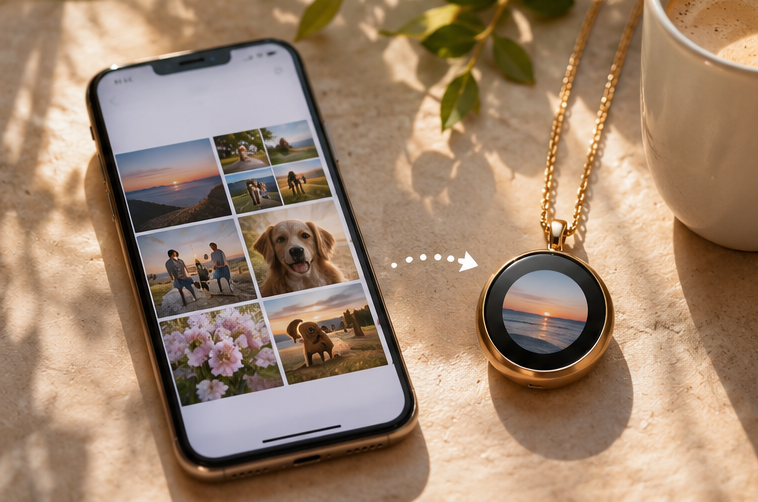
If pairing starts but does not finish
Consider whether the pendant was previously associated with another account or phone. A gift or second-hand device may need a documented ownership transfer process. Ask the previous owner to follow the manufacturer's instructions rather than sharing their account password. Check any pairing error text and record the precise message. If the app requires an online account, confirm that you have a working internet connection as well as local Bluetooth. Do not repeatedly reset an already-connected device before checking what that action does to its saved content. The Smart Locket Setup, Maintenance and Troubleshooting outlines a safe first-setup routine.
When a connection works but the picture does not update
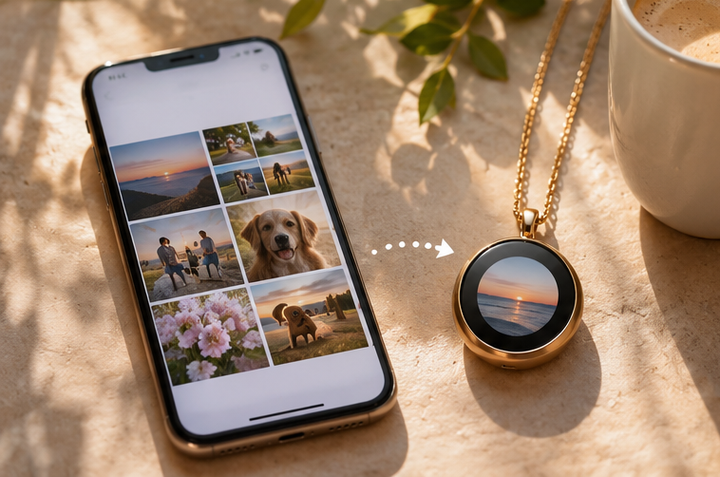
Try transferring one ordinary, supported test image instead of an entire collection or a large video. If that works, the issue may relate to the previous file's size, format or preparation. Review the model's current media limits and confirm the transfer was allowed to finish before opening the necklace. A successful app connection does not automatically mean the file was synchronised. The How to Upload Photos and Videos to a Smart Locket describes how to prepare a test image and check playback. Preserve the original content separately. If a new selection overwrites existing media, confirm that this is what you intended before proceeding.
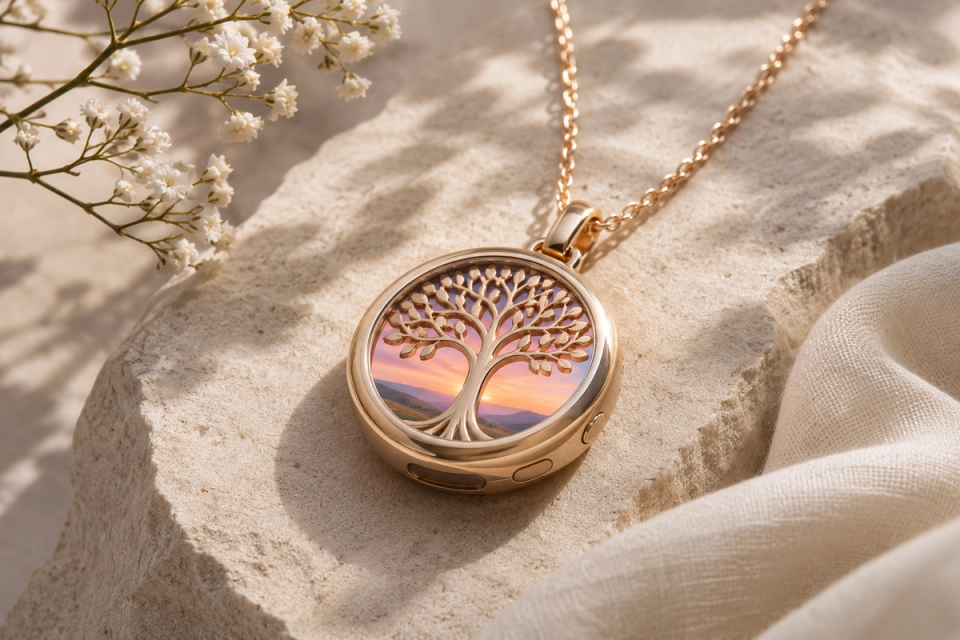
If the problem follows a phone replacement
Install the official app on the new phone and consult the model's account and device migration guidance. Check whether access to the original account is required, and recover it through official channels if necessary. Avoid creating multiple new accounts and guessing which one owns the device. If the necklace still displays its saved photo, keep that working state while you investigate the connection issue. Local viewing does not establish that the account is accessible or that future content updates will work. If the app version or operating system has changed, include those details in your support request.
Prepare a useful support request
Describe the exact model, phone operating system, app version and symptom. Explain whether it charges, whether it appears in the app, and whether a small test photograph transfers. Include the order reference through the official support channel, but do not send your password or private photographs unnecessarily. If the hardware shows physical damage or abnormal heating, discontinue use and ask the manufacturer for advice. A focused report of the failing stage is more useful than repeatedly trying unrelated fixes. Check the current warranty and return policy before arranging any repair or replacement. If you own another necklace type rather than a photo locket, use the connected necklace troubleshooting guide.
Frequently asked questions
Will deleting the app clear the locket?
Do not assume so; local pendant storage and app data may be separate.
Should I factory reset first?
No. Preserve originals and consult the documented reset process after lower-impact checks.
Sources
Smart Lockets Library
Complete guide
Main guides
- Totwoo Tree of Life AI Smart Locket: Features, Benefits and Limitations
- How Smart Lockets Work: Photos, Videos and AI Memories
- Smart Lockets as Meaningful Personalised Gifts
- Smart Locket Setup, Maintenance and Troubleshooting
Supporting guides
- Smart Lockets vs Traditional Photo Lockets
- Totwoo Smart Locket: Gold vs Silver
- Digital Photo Lockets vs Heartbeat Necklaces
- How AI Moving Memories Bring Photos to Life
- How to Upload Photos and Videos to a Smart Locket
- Do Smart Lockets Work Without Internet?
- Smart Locket Privacy and Personal Photo Security
- Smart Lockets for Long-Distance Relationships
- Smart Lockets for Mothers and Grandmothers
- Smart Memorial Lockets for Remembering Loved Ones
- Smart Lockets for Remembering Pets
- Smart Locket Battery Life and Charging Guide
- Are Smart Lockets Waterproof? Everyday Care and Protection